
AI Product Images – Documentation
1) Create your FLUX 2 API Key
You need a tierce party (Black Forest Labs) API Key to be able to use this plugin.
Register with your google account or a valid email here : https://auth.bfl.ai/register
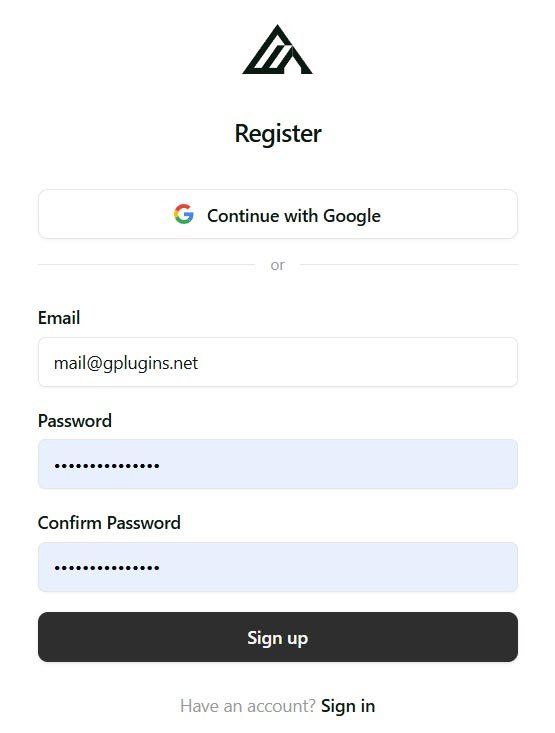
If use custom mail, you will receive a confirmation mail “Confirm Your Signup” (check spam folder if don’t see it.).
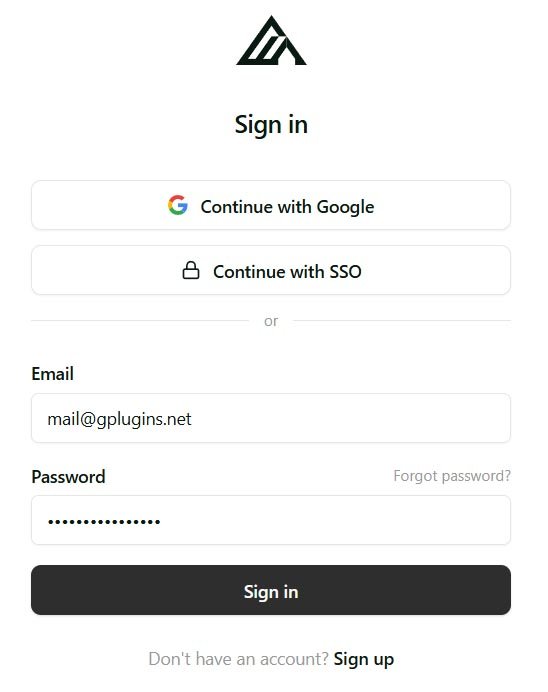
Click on the button / link “Confirm my email” then login to your account.
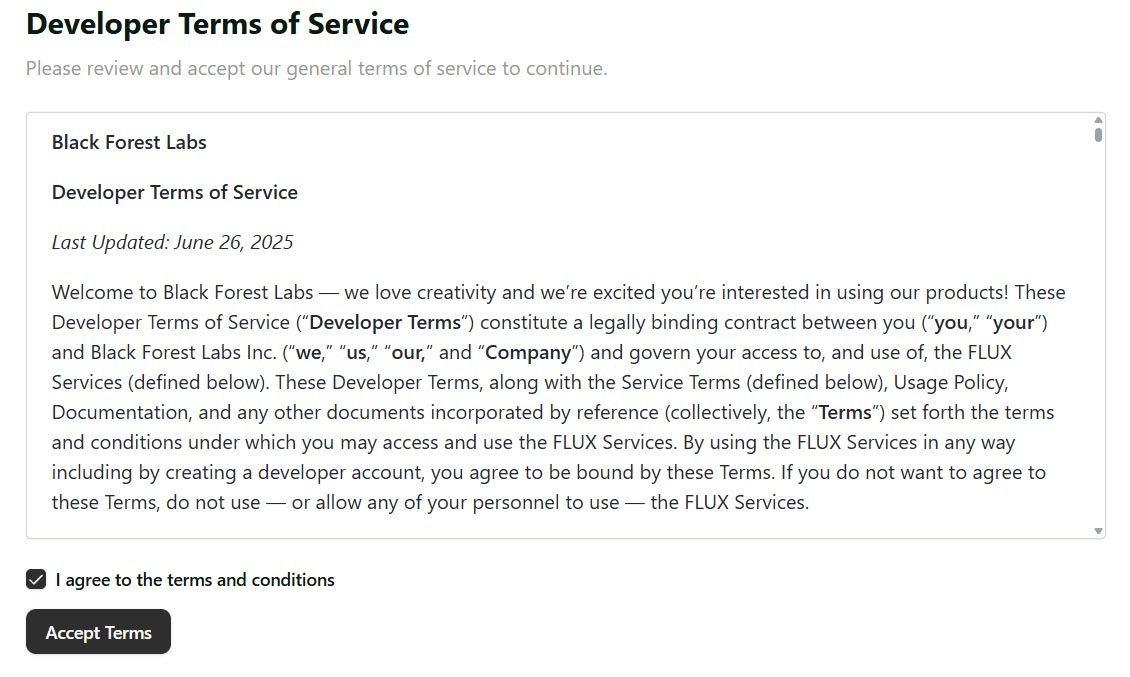
You need to accept Terms of Service :
Click on the button “Create Key” on the right :
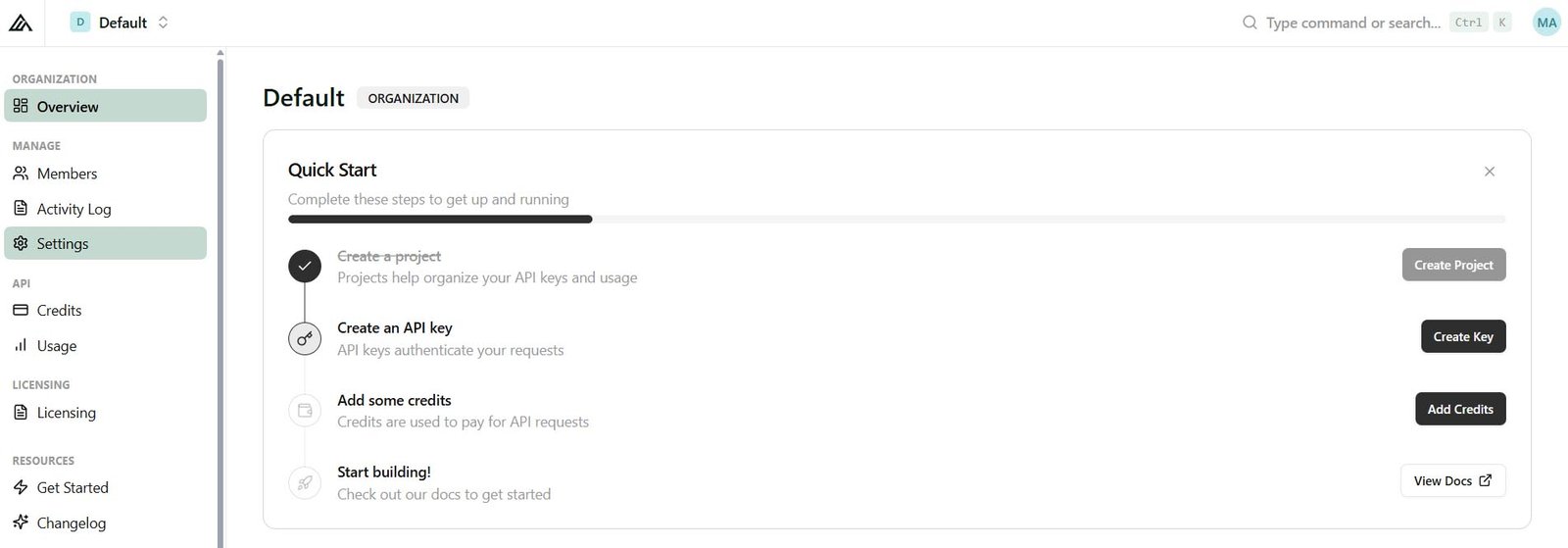
Then click on the project “Default” button (this project was automaticaly created when register)…
Choose a random name for your key, like “My Shop” and click “Create Key” :
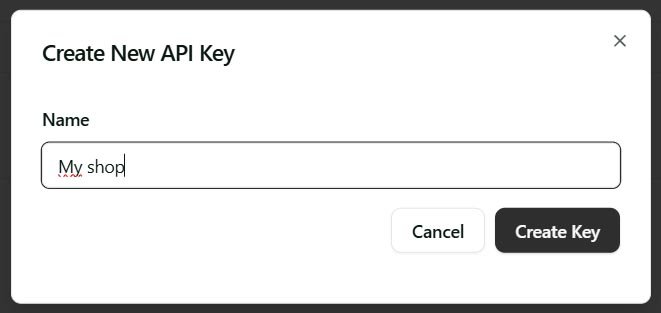
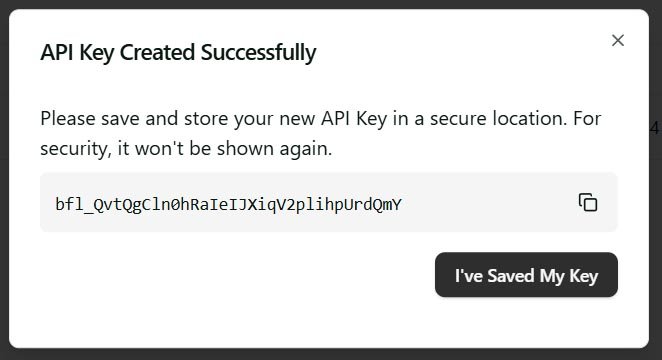
IMPORTANT : on the next step, copy and save your API Key on your computer. You will need to paste this key on the plugin. If you have not save it, you will need to create another one.
When saved, click on “I’ve Saved My Key” :
You can see your Key in the dashboard :
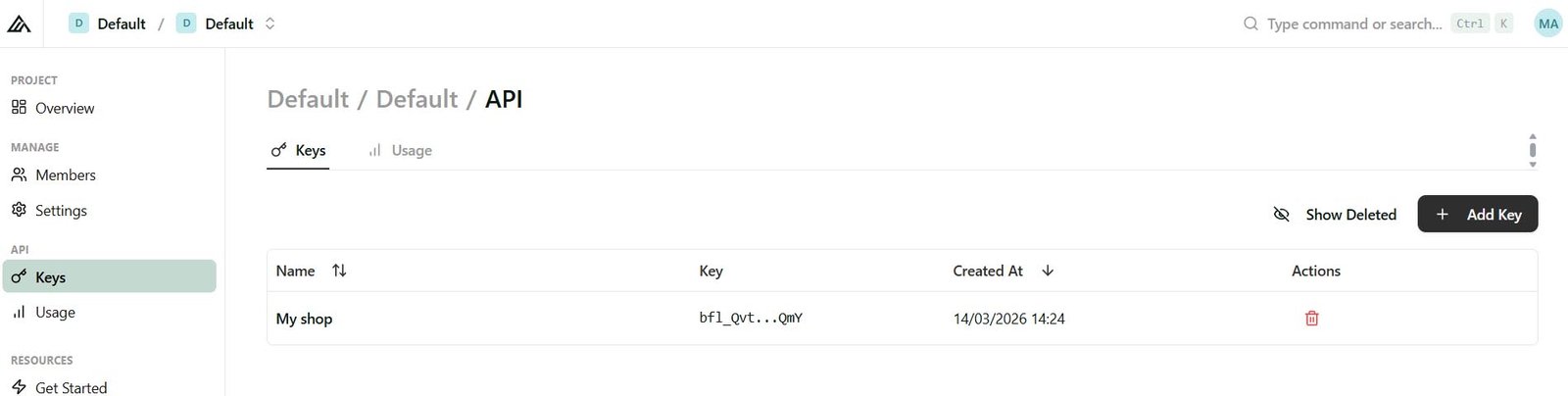
You can here delete it or create new ones…
2) Add credits
Go to the default ‘Organization’ by clicking on the top left on Default / Default :
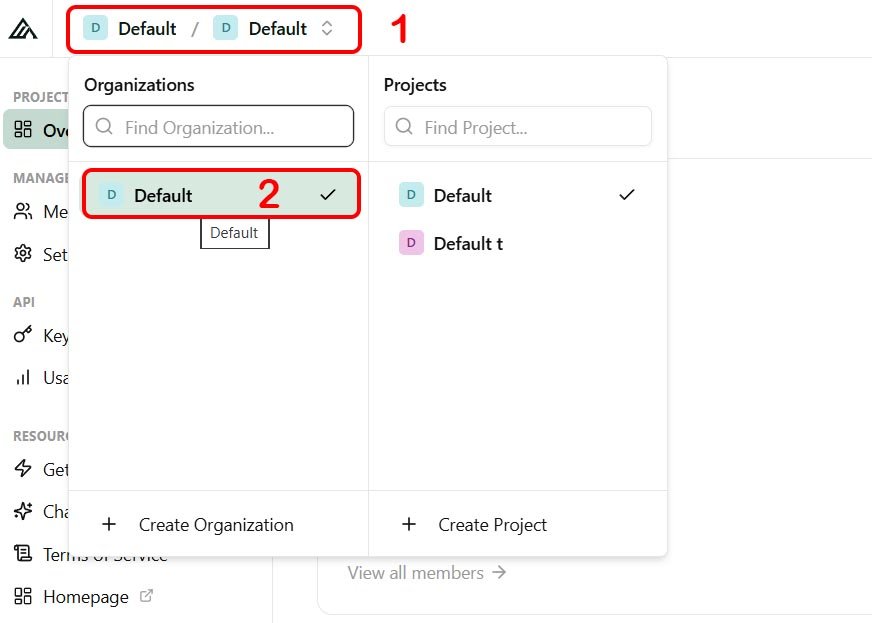
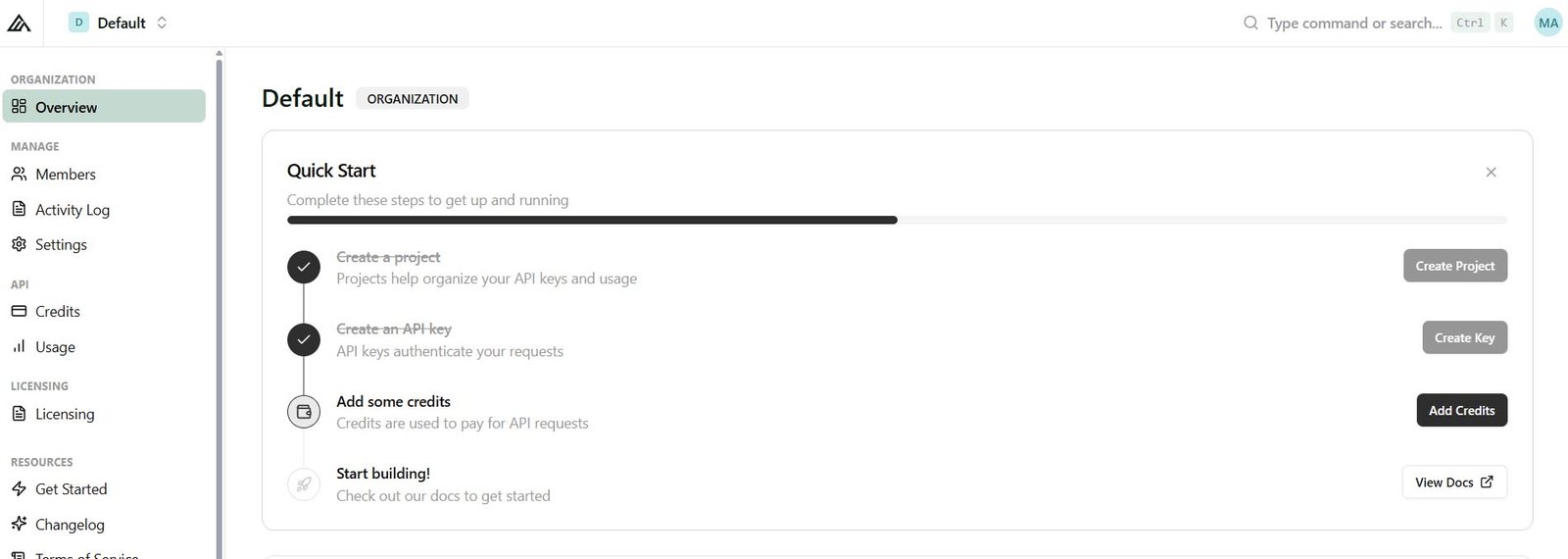
Method 1 : on ‘Overview’ menu click on the right on “Add Credits” button :
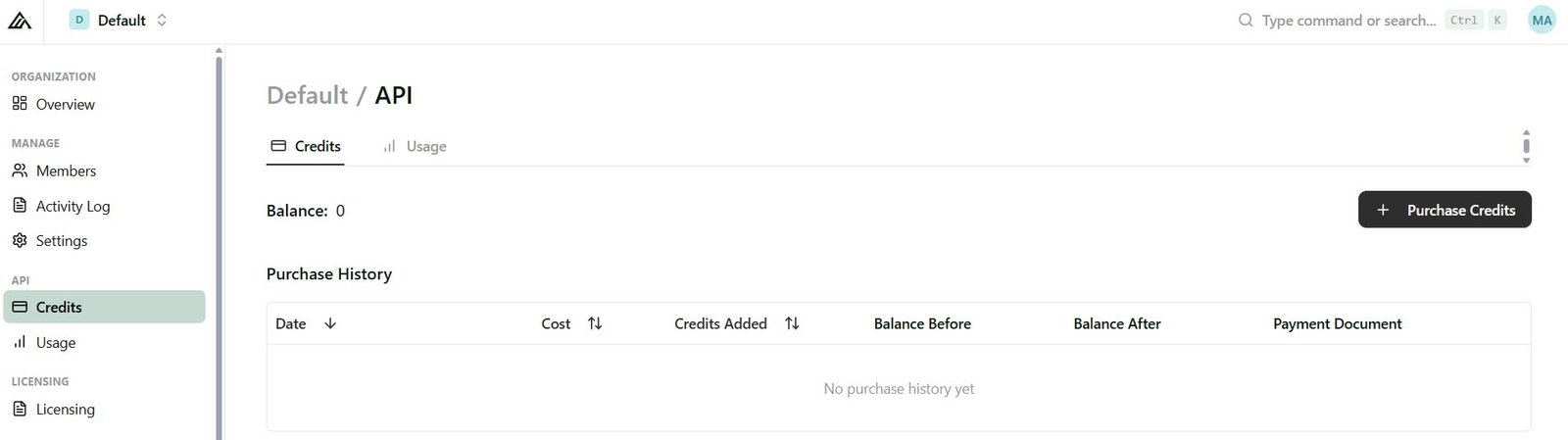
Method 2 : click on ‘Credits’ menu on the left…then “Purchase Credits” button on the right :
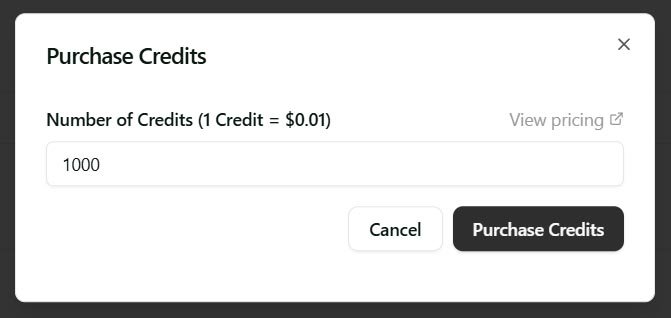
Choose at least 1000 crédits (10$) then click on “Purchase Credits” :
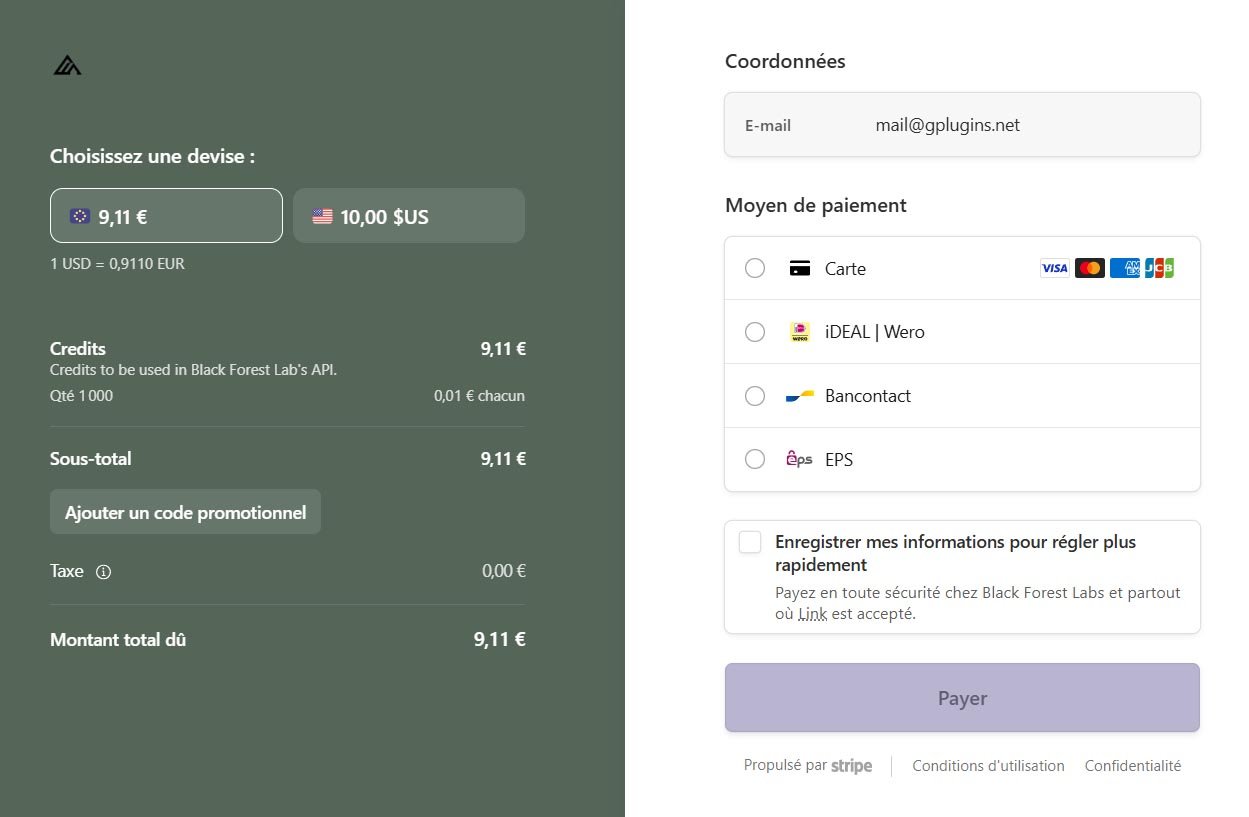
Wait until you are redirected to the Stripe checkout page, then validate payment :
After paymment you will be redirected to your dashboard.
You will be able to see your balance / credits, on the “Credits” menu :
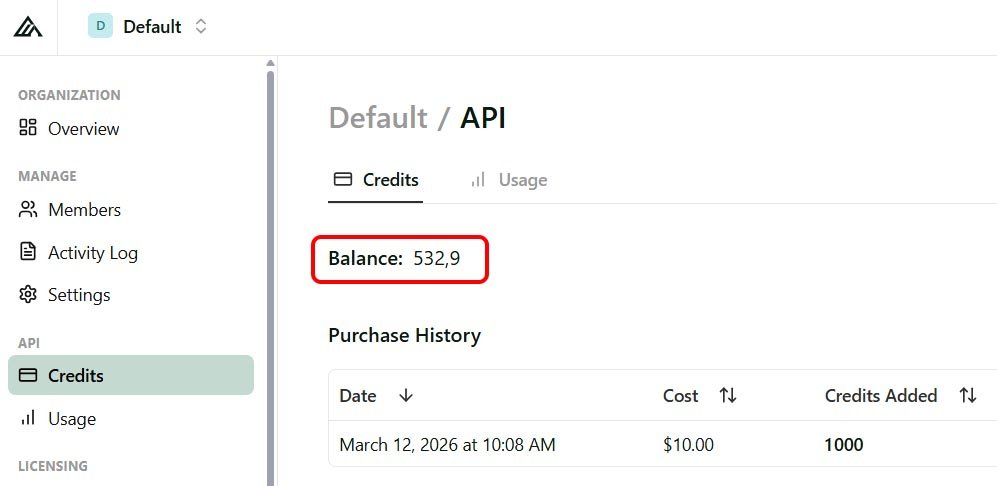
3) Paste API Key on AI Product Image plugin
Go to your wordpress dashboard, Woocommerce menu and “AI Product Images”. Then click on “AI Models” tab. Paste your API Key and click “Save settings” :
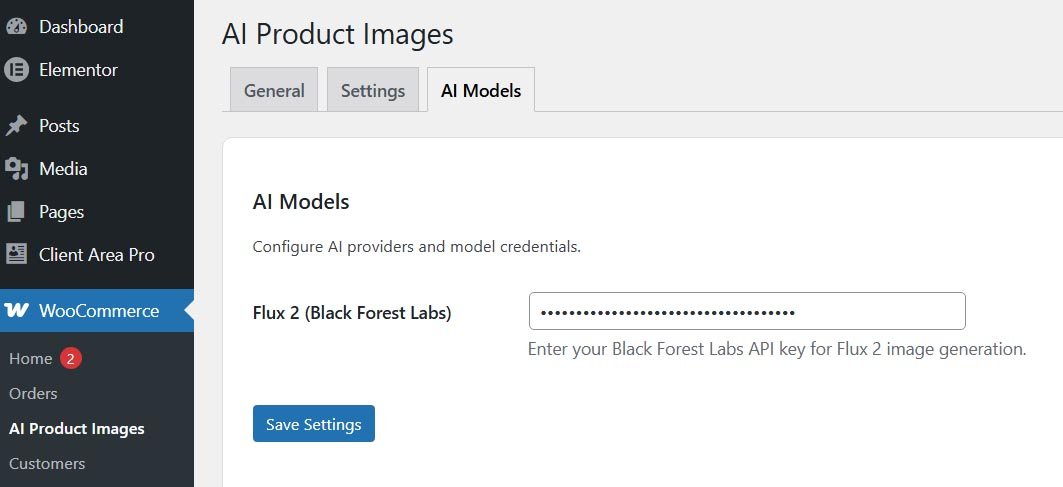
Done.
If need help contact our support…
- AI default model (PRO) : choose between Flux 2 – Klein or Pro models as default when you open AI Image generator popup.
- Default image width & height : choose default size of image generated. 800×800 is recommanded size for Woocommerce, but you can choose your own dimensions.
- Default custom prompt (PRO) : if you are AI prompt expert you can set here your own default prompt to use in popup.
- AI Model : choose between Klein and Pro (PRO). You can set default one in settings.
- How many images to generate : choose between 1 to 4 images (PRO) to generate. So that you will be able to choose the better one for your product feature or gallery.
- Reference images : upload 1 to 8 reference images (PRO). This will be usefull to make combinations and precise result you expect.
- Image generation type : if you upload a product photo (transparent or solid background) as reference image you can choose “Create background” to generate professionnal studio photo. Or you can upload multiple reference images and choose “Images combination” (PRO) to customize more precisely your result.
- Describe product : if you use “Create background” type, you can describe your product to be sure AI system understand what it’s about. Ex : lipstick, t-shirt, parfum, shoes…
- Scene & Environment : if you use “Create background” type, you can specify which kind of background you want, what need appear on it… Ex: luxury marble bathroom vanity, confident female model wearing the t-shirt naturally…
- Describe each reference image goal : if upload reference images, you will need to describe the goal of each image by writing ‘image 1’…’image 2’…etc…
- Use case / goal of the final image : you can add information here to give more details about the result you expect. Ex : luxury visual, marketing ad…
- Prompt mode : you can let system work by himself with auto mode or create a custom prompt if you are expert…
- Generate (Est. $) : depending of options you choosed, you will have the estimate price of the image generation. Generation can take up to 60sec per image…just wait and don’t close popup. If any errors, you will see an error code to share with support for help.
- Generated images : after generation, you will be able to save images in wordpress medias, as product feature (only 1 image) or as product gallery.
IMPORTANT : when you click “Save” or “Cancel” button, popup will close and images will be delete. So be sure to check options under images before clicking “Save” button to keep them. Don’t hurry in your actions…
Klein :
- work well for simple generation like background
- can loose some details (texture, context…)
- cheaper than pro
- faster than pro
Pro :
- best reasonning
- more realistic
- multiple combinations up to 8 images
- slower than Klein
- more expensive
Example :
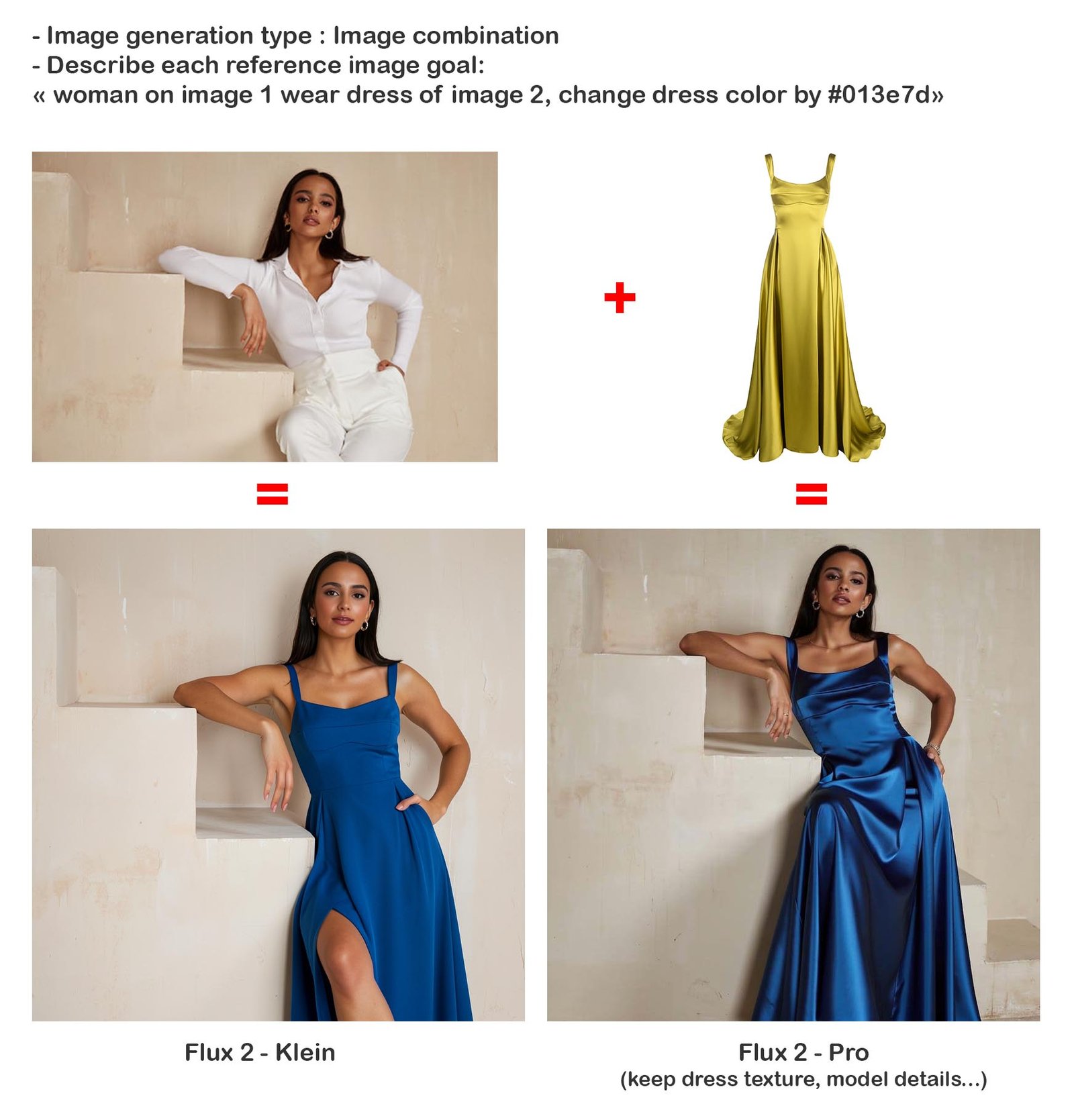
Flux 2 is one of the most powerful AI currently available for realistic image generation (non-artistic)… if not the best!
Klein model :
- 0.014$ the first megapixel image
- 0.001$ for each subsequent megapixel (1 megapixel is 1024×1024)
- 0.001$ for each reference megapixel image
- If i generate a 800×800 image with a 1024×1024 reference image : 0.014 + 0.001 = 0.0015$
- If i generate a 800×800 image with a 1920×1080 reference image : 0.014 + 0.002 = 0.0016$
Pro model :
- 0.03$ the first megapixel image
- 0.015$ for each subsequent megapixel (1 megapixel is 1024×1024)
- 0.015$ for each reference megapixel image
- If i generate a 800×800 image with a 1024×1024 reference image : 0.03 + 0.015 = 0.045$
- If i generate a 800×800 image with a 2048×2048 reference image : 0.03 + 0.03 = 0.06$
Credits :
- There is no subscription fee.
- You purchase the number of credits you need, with a minimum of $10 for 1,000 credits ($0.01 per credit).
- Each image will cost you roughly 2 to 4 credits, depending on the models and options you choose.
Ready to upgrade your WordPress website ?
Get the plugin today—or contact us for a any informations or personalized requests.